|
Status
|
Lines-Back End
|
Front End
|
WSH-Back End
|
front end
|
Triggered Programs
|
|
Entered
|
ENTERED
|
ENTERED
|
-
|
-
|
|
|
Booked
|
AWAITING_SHIPPING
|
AWAITING_SHIPPING
|
R
|
Ready to Release
|
|
|
Pic Release
|
AWAITING_SHIPPING
|
Awaiting Shipping
|
S
|
Released to Warehouse
|
Pick Selection List Generation,Pick
Slip Report
|
|
Pick Confirm
|
AWAITING_SHIPPING
|
Picked
|
Y
|
Staged/Pick Confirmed
|
|
|
Ship Confirm
|
AWAITING_SHIPPING
|
Picked
|
C
|
Shipped
|
|
|
After Runnning Trip Stop
|
SHIPPED
|
Shipped
|
C
|
Interfaced
|
run Interface Trip Stop - SRS
|
|
After Work flow Bgnd Process
|
CLOSED
|
Closed
|
C
|
Interfaced
|
Workflow Background Process
|
|
Invoice
|
CLOSED
|
Closed
|
C
|
Interfaced
Delivery Level='Closed' Trip Level='Closed' |
Autoinvoice Master Program,
Autoinvoice Import Program, Prepayment Matching Program (Prepayments Matching Program) |
Showing posts with label EDI. Show all posts
Showing posts with label EDI. Show all posts
Friday, October 27, 2017
O2C Order Status in Lines & Shipping in Back End & Front End

Wednesday, October 18, 2017
Interface error tables in Oracle Apps
This table stores the processing messages which will be generated during Order Entry concurrent program execution or UI process. This is a multi-lingual table.
SELECT OPT.*
FROM OE_PROCESSING_MSGS OPM, OE_PROCESSING_MSGS_TL OPT
WHERE OPM.TRANSACTION_ID = OPT.TRANSACTION_ID
AND OPT.LANGUAGE = 'US'
PO_INTERFACE_ERRORS contains error message information generated by the open interface programs in Oracle Purchasing. For every interface transaction row with errors, this table contains a row for each column that has an error.
SELECT *
FROM PO_INTERFACE_ERRORS
WHERE INTERFACE_LINE_ID = LN_INT_TRX_ID -- interface transaction id
MTL_TRANSACTIONS_INTERFACE allows calling applications to post material transactions (movements, issues, receipts etc. to Oracle Inventory transaction module.
The Transaction Manager picks up the rows to process based on the LOCK_FLAG, TRANSACTION_MODE, PROCESS_FLAG. Only records with TRANSACTION_MODE of '3', LOCK_FLAG of '2', and PROCESS_FLAG of '1' will be picked up by the Transaction Manager and assigned to a Transaction Worker. If a record fails to process completely, then PROCESS_FLAG will be set to '3' and ERROR_CODE and ERROR_EXPLANATION will be populated with the cause for the error.
SELECT ERROR_CODE,
ERROR_EXPLANATION
FROM MTL_TRANSACTIONS_INTERFACE
WHERE TRANSACTION_REFERENCE = LN_TRX_REF
Interface data that failed in AutoInvoice validation are populated with the error details
SELECT *
FROM RA_INTERFACE_ERRORS_ALL
WHERE INTERFACE_LINE_ID = LN_INTF_ID
The HZ_PARTY_INTERFACE_ERRORS table contains the error messages that are generated while mapping data from the HZ_PARTY_INTERFACE table into other HZ tables.
SELECT *
FROM HZ_PARTY_INTERFACE_ERRORS
WHERE PARTY_INTERFACE_ID = LN_PARTY_INTEFACE_ID
MTL_INTERFACE_ERRORS stores errors that occur during the item interface process reporting where the errors occurred along with the error messages.
SELECT *
FROM MTL_INTERFACE_ERRORS
WHERE TRANSACTION_ID = LN_TRX_ID --Row identifier for row in MTL_SYSTEM_ITEMS_INTERFACE
WIP_INTERFACE_ERRORS stores the text of errors or warnings issued when loading information through the WIP Scheduling and Open Job and Schedule interfaces. It also stores information about the load requests that generate the errors. When the WIP Mass Load program loads records from the WIP Scheduling Interface, you can print a report showing these errors.
SELECT *
FROM WIP_INTERFACE_ERRORS
WHERE INTERFACE_ID = LN_INTF_ID
AP_INTERFACE_REJECTIONS stores information about invoice data from the AP_INVOICES_INTERFACE and AP_INVOICE_LINES_INTERFACE tables which could not be processed by Payables Open Interface Import.
SELECT * FROM AP_INTERFACE_REJECTIONS
Thursday, January 26, 2017
MANUAL SHIP CONFIRM PROCESS IN ORDER MANAGEMENT ORACLE EBS R12.2
MANUAL SHIP CONFIRM PROCESS IN ORDER MANAGEMENT ORACLE EBS R12.2
MANUAL SHIP CONFIRM PROCESS IN ORDER MANAGEMENT ORACLE EBS R12.2
Concept: Once the pick release and pick confirm process is over, the details will be assigned to deliveries. Deliveries will be assigned to trips and trip is collections of stops.
- Below is the process flow in manual shipping process.

- Let’s discuss the complete process in detail below.
STEP 1: We are creating an Item in Master Organization and applying to the Inventory. Let’s increase the quantity of the material by taking miscellaneous receipt for an example.
Invoking: Inventory->Items->Master Items
- ITEM CREATED: Data card
- On Hand Quantity : 200
- Unit Price : $15

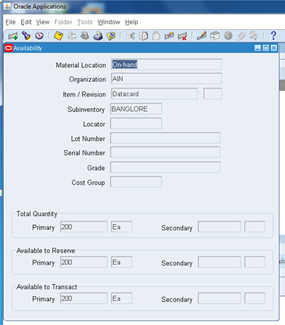
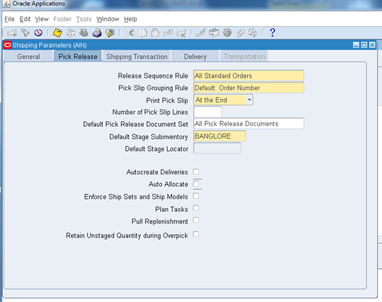
STEP 2: Now switch to the “Order Management Super User Responsibility”->Shipping Parameters uncheck the two check boxes “Auto create Deliveries” and “Auto Allocate” so that we can transact the move orders and manually view the shipping process.
STEP 3: Now let’s book a Normal sales order, just as below.
Invoking: Order Management Super User->Orders & Returns->Sales Order
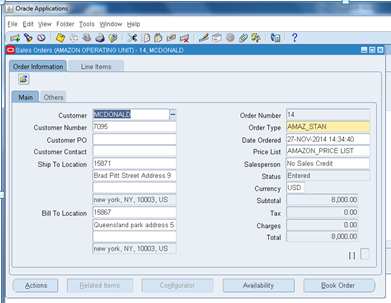

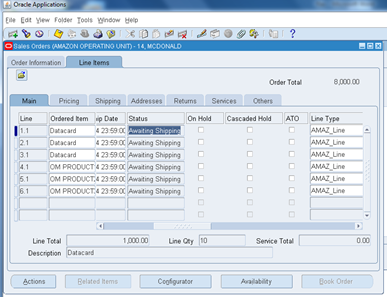
In the above we have booked a sales order with six line items respectively.
STEP 4: Now we are going to release the Sales order
Invoking: Order Management Super User->Shipping->Release Sales Order->Release Sales Order
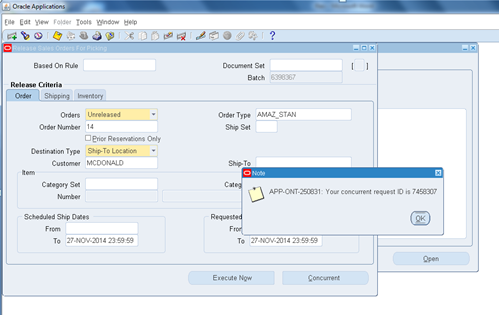
Let’s check the shipping transaction here.
Invoking: Order Management Super User->Shipping->Transactions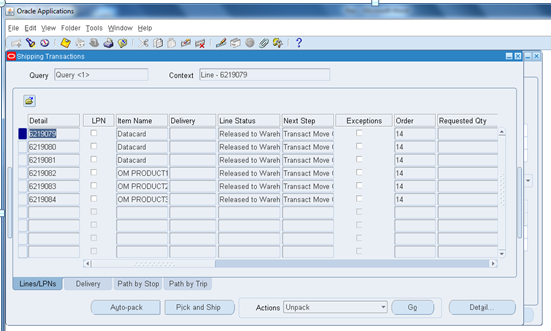
- Now here we can see that the line status of the shipping transaction is released to Warehouse with the next step as Transact move order with move order # generated if we scroll to right.
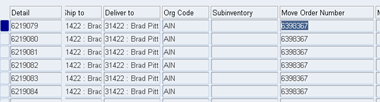
STEP 5: Let’s transact the move orders from switching the responsibility to Inventory.
Invoking: Inventory-> Move Orders->Transact Move Orders
Query by the Move order # and select the line, allocate and Transact as below.

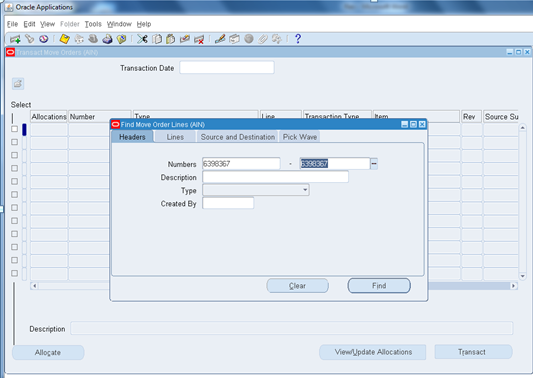
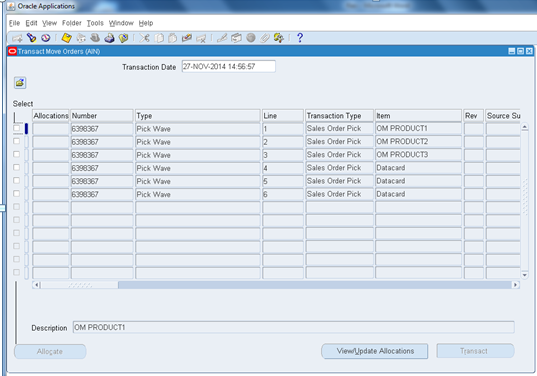
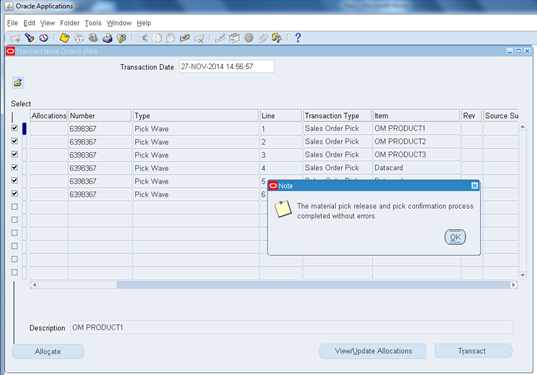
If we check the sales order status it will be picked.
STEP 6: Now we are going to perform the below process manually.
- Delivery
- Path by Stop
- Path by Trip
The current status of the sales order is below:
PROCESS
|
LINE STATUS
|
DELIVERY STATUS
|
PATH BY STOP
|
PATH BY TRIP
|
SALES ORDER LINE STATUS
|
After Releasing the Sales Order/Transact Move order
|
Staged/Pick Confirmed
|
BLANK
|
BLANK
|
BLANK
|
PICKED
|
Now we are going to check each step in detail.
- In Shipping Transaction dialog box, select the Lines/LPNs Tab
- We can view the Line status as Staged/Pick Confirm; now select the lines for which the shipment has to be done by using Ctrl + Arrow.
- After selection click on Actions-> Auto Create Deliveries just as below.

- Now we can see that Delivery Tab is open after Auto Create Deliveries.
Here lets Ship confirm the order by removing the check box for the below.
- Set Delivery in Transit
- Close Trip

- Now if you re query the shipping transaction the Delivery status will be Confirmed just as below.

- Now the Pick by Stop Tab is displayed as below with open status with two activities “Awaiting Pickup” and “Awaiting drop off” which means the item has to be provoked to pick up and required to be delivered to the destination.

STEP 7: In order to provoke Pickup, select the Activity Awaiting Pickup and select update status from action so that you can close the pick up as below.

- Now if you witness, the Pickup activity is closed and simultaneously if you check the sales order status it will be displayed as Shipped, since the pickup process has been completed.
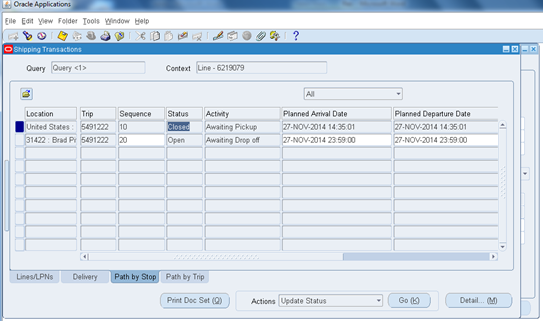
- Status at sales order level.

STEP 8: Similarly let’s complete the Awaiting drop off as well, by selecting the line items and choosing
Action->Update Status- >go as below.
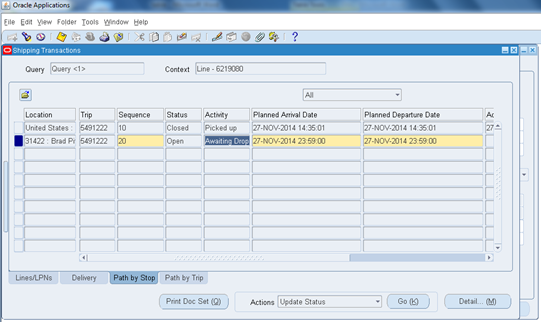
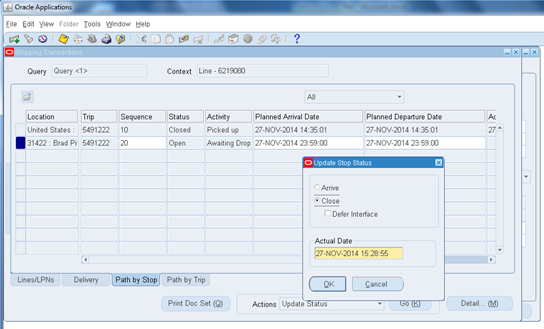
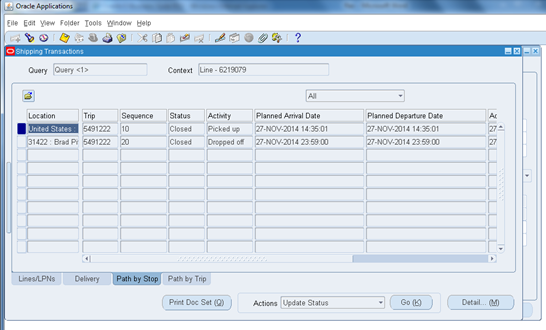
- And “Path by Trip” shows the status as Closed and Activity as completed as below.
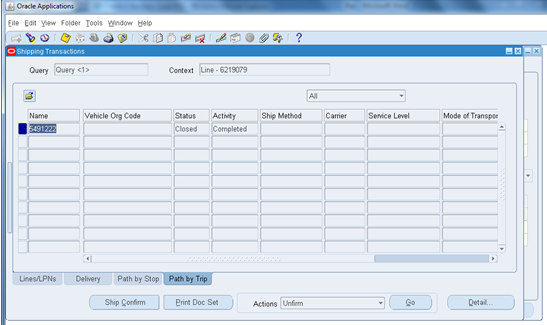
- Here everything is completed and the status of the sales order line is shipped.
STEP 8: Let’s run the Workflow Background process in order to change the status into “Awaiting invoice interface” so that it can be taken cared by Accounts Receivables from here.
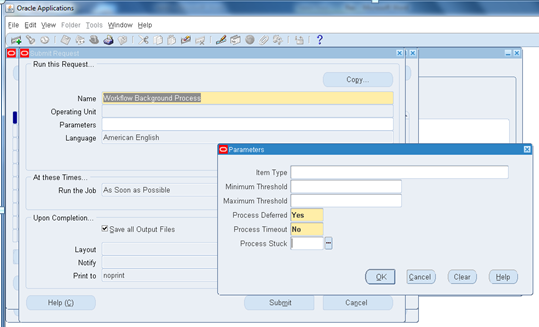
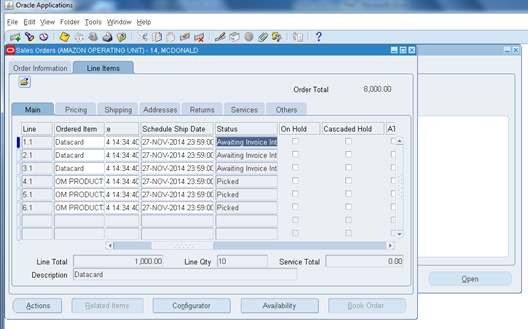
- Now we have completed the manual Shipping process for the selected three items (Data card) of the sales order, similarly we can proceed for other three items (OM PRODUCT).
Now let’s have a clear view of different status of the order while performing Manual Shipping Process
MANUAL SHIPPING PROCESS DIFFERENT STATUS IN SHIPPING TRANSACTIONS:
SL NO
|
PROCESS
|
LINE STATUS
|
DELIVERY STATUS
|
PATH BY STOP
|
PATH BY TRIP
|
SALES ORDER LINE STATUS
| ||
STATUS
|
ACTIVITY
|
STATUS
|
ACTIVITY
| |||||
1
|
After Releasing the Sales Order/Transact Move order
|
Staged/Pick Confirmed
|
BLANK
|
BLANK
|
BLANK
|
BLANK
|
BLANK
|
PICKED
|
2
|
After Auto create Delivery
|
Staged/Pick Confirmed
|
Open
|
Open
|
BLANK
|
Open
|
BLANK
|
PICKED
|
3
|
After Ship Confirm Delivery
|
Staged/Pick Confirmed
|
Confirmed
|
Open
|
Awaiting Pickup
|
Open
|
Remaining
|
PICKED
|
Open
|
Awaiting Drop off
| |||||||
4
|
After path by stop” pickup” Closing
|
Interfaced
|
In-Transit
|
Closed
|
Picked up
|
In-Transit
|
On Board
|
Shipped
|
Open
|
Awaiting Drop off
| |||||||
5
|
After
” Awaiting Drop off” Closing
|
Interfaced
|
Closed
|
Closed
|
Picked up
|
Closed
|
Completed
|
Shipped
|
Closed
|
Dropped off
| |||||||
6
|
After Running Workflow Background
|
Interfaced
|
Closed
|
Closed
|
Picked up
|
Closed
|
Completed
|
Awaiting Invoice Interface - Incomplete Data/Closed
|
Closed
|
Dropped off
|
- This completes the illustration about manual shipping process concept.
Subscribe to:
Posts (Atom)