Showing posts with label P2P. Show all posts

Thursday, February 15, 2018

Use of PO_REQAPPROVAL_INIT1.START_WF_PROCESS API to Approve PO, BPA & PR


Use of PO_REQAPPROVAL_INIT1.START_WF_PROCESS API to Approve Purchase Orders, Blanket Purchase Agreements & Purchase Requisition ...
Some times, we are wondering what exactly Oracle is doing when we are clicking on the Approve button in the Purchase Order/Requisition Form. And How does Approve button call the Purchasing approval workflow.

  • When the Approve button is clicked, the approval modal window form for purchasing approvals iscalled (this is form POXDOAPP.fmb and its attached corresponding library file POXAPAPC.pll.). Both Enter Requisition and Enter Purchase Order forms call the the same approval form.
  • The library file POXAPAPC.pll has a procedure PO_WF_APPROVE_C.SetUpWorkFlow that calls the procedure PO_REQAPPROVAL_INIT1.Start_WF_Process in package file POXWPA1B.pls.
  • This server side procedure calls the workflow and initiates the workflow and processes the document through the workflow...

-- R12 - PO - SAMPLE SCRIPT TO APPROVE PURCHASE ORDER
DECLARE
v_item_key VARCHAR2(100);

Cursor c_po_details is

SELECT
pha.po_header_id,
pha.org_id,
pha.segment1,
pha.agent_id,
pdt.document_subtype,
pdt.document_type_code,
pha.authorization_status
FROM apps.po_headers_all pha, apps.po_document_types_all pdt
WHERE pha.type_lookup_code = pdt.document_subtype
AND pha.org_id = pdt.org_id
AND pdt.document_type_code = 'PO'
AND authorization_status in ('INCOMPLETE', 'REQUIRES REAPPROVAL')
AND segment1 = '11170000860'; -- Enter the Purchase Order Number
BEGIN
fnd_global.apps_initialize (user_id => 2083,
resp_id => 20707,
resp_appl_id => 201);
FOR p_rec IN c_po_details
LOOP

mo_global.init (p_rec.document_type_code);
mo_global.set_policy_context ('S', p_rec.org_id);

SELECT p_rec.po_header_id '-' to_char(po_wf_itemkey_s.NEXTVAL)
INTO v_item_key FROM dual;
dbms_output.put_line (' Calling po_reqapproval_init1.start_wf_process for po_id=>' p_rec.segment1);

po_reqapproval_init1.start_wf_process(
ItemType => 'POAPPRV'
, ItemKey => v_item_key
, WorkflowProcess => 'POAPPRV_TOP'
, ActionOriginatedFrom => 'PO_FORM'
, DocumentID => p_rec.po_header_id -- po_header_id
, DocumentNumber => p_rec.segment1 -- Purchase Order Number
, PreparerID => p_rec.agent_id -- Buyer/Preparer_id
, DocumentTypeCode => p_rec.document_type_code--'PO'
, DocumentSubtype => p_rec.document_subtype --'STANDARD'
, SubmitterAction => 'APPROVE'
, forwardToID => NULL
, forwardFromID => NULL
, DefaultApprovalPathID => NULL
, Note => NULL
, PrintFlag => 'N'
, FaxFlag => 'N'
, FaxNumber => NULL
, EmailFlag => 'N'
, EmailAddress => NULL
, CreateSourcingRule => 'N'
, ReleaseGenMethod => 'N'
, UpdateSourcingRule => 'N'
, MassUpdateReleases => 'N'
, RetroactivePriceChange => 'N'
, OrgAssignChange => 'N'
, CommunicatePriceChange => 'N'
, p_Background_Flag => 'N'
, p_Initiator => NULL
, p_xml_flag => NULL
, FpdsngFlag => 'N'
, p_source_type_code => NULL);
commit;

DBMS_OUTPUT.PUT_LINE ('The PO which is Approved Now =>' p_rec.segment1);
END LOOP;
END;

-- R12 - PO - SAMPLE SCRIPT TO APPROVE BLANKET PURCHASE AGREEMENT

DECLARE

v_item_key VARCHAR2(100);

Cursor c_po_details is
SELECT
pha.po_header_id,
pha.org_id,
pha.segment1,
pha.agent_id,
pdt.document_subtype,
pdt.document_type_code,
pha.authorization_status,
pha.approved_flag,
pha.wf_item_type,
pha.wf_item_key
FROM apps.po_headers_all pha, apps.po_document_types_all pdt
WHERE pha.type_lookup_code = pdt.document_subtype
AND pha.org_id = pdt.org_id
AND pdt.document_type_code = 'PA'
AND authorization_status in ('INCOMPLETE', 'REQUIRES REAPPROVAL')
AND segment1 = '11170000021'; -- Enter the BPA Number

BEGIN

fnd_global.apps_initialize (user_id => 2083,
resp_id => 20707,
resp_appl_id => 201);

FOR p_rec IN c_po_details

LOOP
mo_global.init ('PO');
mo_global.set_policy_context ('S', p_rec.org_id);

SELECT p_rec.po_header_id '-' to_char(po_wf_itemkey_s.NEXTVAL)
INTO v_item_key FROM dual;

dbms_output.put_line ('Calling po_reqapproval_init1.start_wf_process for po_id=>' p_rec.segment1);

po_reqapproval_init1.start_wf_process(
ItemType => 'POAPPRV'
, ItemKey => v_item_key
, WorkflowProcess => 'POAPPRV_TOP'
, ActionOriginatedFrom => 'PO_FORM'
, DocumentID => p_rec.po_header_id -- po_header_id
, DocumentNumber => p_rec.segment1 -- Purchase Order Number
, PreparerID => p_rec.agent_id -- Buer/Preparer_id
, DocumentTypeCode => p_rec.document_type_code--'PA'
, DocumentSubtype => p_rec.document_subtype --'BLANKET'
, SubmitterAction => 'APPROVE'
, forwardToID => NULL
, forwardFromID => NULL
, DefaultApprovalPathID => NULL
, Note => NULL
, PrintFlag => 'N'
, FaxFlag => 'N'
, FaxNumber => NULL
, EmailFlag => 'N'
, EmailAddress => NULL
, CreateSourcingRule => 'N'
, ReleaseGenMethod => 'N'
, UpdateSourcingRule => 'N'
, MassUpdateReleases => 'N'
, RetroactivePriceChange => 'N'
, OrgAssignChange => 'N'
, CommunicatePriceChange => 'N'
, p_Background_Flag => 'N'
, p_Initiator => NULL
, p_xml_flag => NULL
, FpdsngFlag => 'N'
, p_source_type_code => NULL);
commit;
dbms_output.put_line ('The BPA which is Approved Now =>' p_rec.segment1);

END LOOP;
END;

-- R12 - PO - SAMPLE SCRIPT TO APPROVE PURCHASE REQUISITION

DECLARE

v_item_key VARCHAR2(100);

Cursor c_req_details is

SELECT
prh.requisition_header_id,
prh.org_id,
prh.preparer_id,
prh.segment1,
pdt.document_subtype,
pdt.document_type_code,
prh.authorization_status
FROM apps.po_requisition_headers_all prh, apps.po_document_types_all pdt
WHERE prh.type_lookup_code = pdt.document_subtype
AND prh.org_id = pdt.org_id
AND pdt.document_type_code = 'REQUISITION'
AND NVL (authorization_status, 'INCOMPLETE') = 'INCOMPLETE'
AND segment1 = '21170000200'; -- Enter The Requisition Number
BEGIN

fnd_global.apps_initialize (user_id => 1805,
resp_id => 20707,
resp_appl_id => 201);

FOR p_rec IN c_req_details

LOOP

mo_global.init ('PO');
mo_global.set_policy_context ('S', p_rec.org_id);

SELECT p_rec.requisition_header_id '-' to_char(po_wf_itemkey_s.NEXTVAL)
INTO v_item_key FROM dual;

dbms_output.put_line (' Calling po_reqapproval_init1.start_wf_process for requisition =>' p_rec.segment1);

po_reqapproval_init1.start_wf_process(
ItemType => NULL
, ItemKey => v_item_key
, WorkflowProcess => 'POAPPRV_TOP'
, ActionOriginatedFrom => 'PO_FORM'
, DocumentID => p_rec.requisition_header_id -- requisition_header_id
, DocumentNumber => p_rec.segment1 -- Requisition Number
, PreparerID => p_rec.preparer_id
, DocumentTypeCode => p_rec.document_type_code-- REQUISITION
, DocumentSubtype => p_rec.document_subtype -- PURCHASE
, SubmitterAction => 'APPROVE'
, forwardToID => NULL
, forwardFromID => NULL
, DefaultApprovalPathID => NULL
, Note => NULL
, PrintFlag => 'N'
, FaxFlag => 'N'
, FaxNumber => NULL
, EmailFlag => 'N'
, EmailAddress => NULL
, CreateSourcingRule => 'N'
, ReleaseGenMethod => 'N'
, UpdateSourcingRule => 'N'
, MassUpdateReleases => 'N'
, RetroactivePriceChange => 'N'
, OrgAssignChange => 'N'
, CommunicatePriceChange => 'N'
, p_Background_Flag => 'N'
, p_Initiator => NULL
, p_xml_flag => NULL
, FpdsngFlag => 'N'
, p_source_type_code => NULL);

commit;

dbms_output.put_line ('The Requisition which is Approved =>' p_rec.segment1);
END LOOP;
END;

Tuesday, June 13, 2017

P2P(Procure-to-Pay) Cycle Tables with Joins

P2P(Procure-to-Pay) Cycle Tables with Joins


Pre Requisites for Purchase Order:

1.Item Creation:

2.Supplier Creation:

3.Buyer Creation:

-------------------------------------------------

1.Item Creation:

1)Attach the Responsibility called "Inventory Vision Operations (USA)"
2)Open the Items form
  Items=>Master Item
3)Select the Organization name - Vision Operations
4)Enter the Item Name , Item Description 
  goto Inventory tab check the checkbox called Inventory 
  goto purchasing tab check the check box called Purchasing
5)Save
6)Goto  Tools Menu => Organization Assignment option to assign for the multiple
  organizations.

SELECT * FROM MTL_SYSTEM_ITEMS_B WHERE SEGMENT1='APACHE'  --INVENTORY_ITEM_ID=20817

2.Supplier Creation:

1)Attach the Responsibility called "Purchasing Vision Operations (USA)"
2)Goto the Supplier Form
  Supply Base=>Suppliers
3)Enter the Supplier Name . Save supplier number will be created automatically.
4)Select the Sites button enter the supplier site address and other details
5)Goto the Contacts tab enter the Contact details 
    Name
    Phno
    Postion and so on.....


SELECT * FROM PO_VENDORS WHERE SEGMENT1='20067' --VENDOR_ID=7930

SELECT * FROM PO_VENDOR_SITES_ALL WHERE VENDOR_ID=7930 --VENDOR_SITE_ID IN (4638,4639)

SELECT * FROM PO_VENDOR_CONTACTS WHERE VENDOR_SITE_ID IN (4638,4639)

3.Buyer Creation:


Buyer Creation:
==================

1)attach the Responsibility called "US HRMS Manager"
2)Create Employee  
  People => Enter and Maintain=>Select New button
3)Enter Emp name 
  select action option select "create Employement" select the optiona s "Buyer"
4)enter Data of Birth 
  save => Ok  = > Empoyee number will be generated.
5)Goto  System Administrator open the User form create or query user
  select the Person field attach the emp name (Which we have created)
6)Save.
7)Goto Purchasing Responsibility 
  open the Buyers form 
  enter the employee name and save the transactions.
 Setup => Personnal =>Buyers


SELECT * FROM PER_ALL_PEOPLE_F --WHERE --PERSON_ID='25'--EMPLOYEE_NUMBER='1289' --PERSON_ID=13496


Purchase Order Flow:

1.Requisition
2.RFQ(Request for Quatation)

1.REQUISITION:

Requisition: is one of the purchasing document will be prepared by the employee when
   ever he required the materials or Services or Training and so on.
we have two types of Requisitions 1)Internal
                    2)Purchase

Internal requisition will be created if materials are receiving from another Inventory
inside of the organization.
Purchase requisition will be created while purchasing the materials from the Suppliers.

Requisitions=>Requisitions

We will enter the Requisition at three level 1)Header
                        2)Line
                        3)Distributions.

Open the Requisition form enter the Reqno and select the type at Header level
 Enter the Items information at line level like Item name,qty,unitprice,tax and so on
select Distributions button enter the Distributions details.
Save
Select the Button called Approve button to go for approving the Requisition Document
Open the Requisition summary form.
Enter the Reqno select find button we can find the Requisition status wether it is
approved or not.
select Tools menu => View Action History to find the history details
Select Tools Menu  =>Control option to Cancel the requisition.


SELECT * FROM PO_REQUISITION_HEADERS_ALL WHERE SEGMENT1='5716' --REQUISITION_HEADER_ID=56885

SELECT * FROM PO_REQUISITION_LINES_ALL WHERE REQUISITION_HEADER_ID=56885  --REQUISITION_LINE_ID=60797

SELECT * FROM PO_REQ_DISTRIBUTIONS_ALL WHERE REQUISITION_LINE_ID=60797

2.RFQ(REQUEST FOR QUOTATION)


Once the Requisition is Approved Buyer will prepare thre RFQ document which will be
delivered to the supplier. Supplier will respond for that with quotation.
we have Three types of RFQ documents

BID RFQ:This will be prepared for the secific fixed quantity and there won't be any
        PriceBraeaks(Discounts).

catalog RFQ: This will be create for te materials which we will purchase from the
        suppliers regularley , and large number of quantity. Here we can specify the
        Price Breaks.

Standard RFQ:  This will be prepared for the Items which we will purchase only once
        not very often,Here we can include the Discounts information at different
        auantity levels.
RFQ Information will be entered at 3 Level
  1)Headers
  2)Lines
  3)Price Breaks(CATALOG,STANDARD) or Shippments (Only for Bid RFQ)

Terms And Conditions:
While creation of the RFQ documents we will select the Terms button and we will enter
the terms abd condition details.

Payment Terms: When Organization is going to make the payment and Interest rates
Fright  Terms: Who is going to Bear the Tansportation chargers wether Buyer or Supplier
FOB(FreeOnBoard): If any materials damage or any missing quantity is there then the
             the responsiboility of those materials.
Carrier     : In which Transportation Company Organization Required Materials
              Transportation company Name.

Open the RFQ Form

RFQ and Quotations=>RFQ's
select TYpe and Dates and so on
enter the Items details at line level
select terms button enter the Terms and Condition Details
Select the Price Braks button enter the Price break details
Save
Select the suppliers button enter the suplier details (Who are receiving this Document)
Select the Button called Add from List to Include the supplier list automatically.


SELECT * FROM PO_HEADERS_ALL WHERE SEGMENT1='347' AND TYPE_LOOKUP_CODE='RFQ' --PO_HEADER_ID=32876

SELECT * FROM PO_LINES_ALL WHERE PO_HEADER_ID=32876 -- PO_LINE_ID=38063

SELECT * FROM PO_LINE_LOCATIONS_ALL WHERE PO_LINE_ID=38063 --LINE_LOCATION_ID=72425

3.QUOTATION:


Quotation is another purchasing document we will receive from the Supplier which
contains the supplier quote details , Price, Payment terms and so on.

Whatever the quotations we have received from the supplier we will enter in the system
through form.

We have three types of Quotations 1)Bid 2)Catalog 3)Standard

For Bid RFQ      we will  receive Bid      quotation from the Supplier
For Catalog RFQ  we will  receive Catalog  quotation from the Supplier
For Standard RFQ we will  receive Standard quotation from the Supplier.

After enter all the quotations in the system management will do quote analysis as per
that one best quotation will be elected as Purchase Order.

Quotation Report

Item Name   (Table Value set MTL_SYSTEM_ITEMS_B   Segment1)

QuoteNo Type  Cdate Supplier Site ContactPerson Buyer   Created(UserName)

4.PURCHASE ORDER:

PO is one of the Main document which will be prepared and approved by the buyer and
send it to the supplier. which contains the following information
terms and Conditions
Items deails
Qty,Price
Distiribution and Shipment Details and so on.

We have four types of Purchase Order       1)STANDARD
     2)PLANNED
     3)BLANKET
     4)CONTRACT

Purchase Orders=> Purchase Orders
Open the PO form enter the Inforamtion at header level select line level inforamtion
enter the items and quantity,price details
select shippments button enter the shippment details select the Distributions button
enter the Distribution Detauils.
Save
Select the Button called Approve (Uncheck Email Check Box) , Document will be submitted
for approval.
open the Purchase Order summary form  enter PO number Select Find button we can find
the status of the Purchase order.
Goto Tools menu
Action History => We can find who hs submitted for Approve /Reject /Cancel details
Copy Document  => To Create Another PO based on this PO
Control        => To Close the Purchase Order or to cancel the Purchase Order.

Types of Purchase Order: -


Standard P.O
Planned P.O
Blanket P.O
ContractP.O
Terms and Conditions
Goods or Service Known
Pricing Known
Quantity known
Account Distributions Known
Delivery Schedule Known
Can be Encumbered
Can Encumber releases
Yes
Yes
Yes
Yes
Yes
Yes
Yes
N/A

Yes
Yes
Yes
Yes
Yes
May be
Yes
Yes

Yes
Yes
May be
No
No
No
No
Yes

Yes
No
No
No
No
No
No
N/A


SELECT * FROM PO_HEADERS_ALL WHERE SEGMENT1='4514' AND TYPE_LOOKUP_CODE='STANDARD' --PO_HEADER_ID =32878
 --TYPE_LOOKUP_CODE

SELECT * FROM PO_LINES_ALL WHERE PO_HEADER_ID =32879 --PO_LINE_ID=38065

SELECT * FROM PO_LINE_LOCATIONS_ALL WHERE PO_LINE_ID=38066 --LINE_LOCATION_ID=72427

SELECT * FROM PO_DISTRIBUTIONS_ALL WHERE LINE_LOCATION_ID=72428

SELECT * FROM PO_LOOKUP_CODES --LOOKUP_CODE

AUTO CREATE:


It is one of the Purchasing feature to create the RFQ and  PO documents automatically
by using requisition lines.

1)Create Requisition and approve
2)Open the AutoCreate form
3)Select Clear button enter the RequisitionNO
4)Select find button which will shows all the requisition lines
  select the lines whatever we want to include into the RFQ
5)select Action = Create to create new RFQ
  AddTo  to add lines to exisiting to RFQ
6)Select DocumentType = RFQ
7)select Automatic button which will create RFQ document automatically .

5.RECEIPTS:


           Receipts are one of the documents it will be used to find out how much quantity Supplier has supplied. We will find out Purchase Order status if it is successfully approved then we will create the Receipt. We will give the PO Number select Findbutton check the PO lines right mark and save. It will create the Receipt number select Header button it will shows the receipt number and date.           
                                                                                                                                                               SELECT * FROM RCV_SHIPMENT_HEADERS WHERE RECEIPT_NUM=7472 --SHIPMENT_HEADER_ID=61421


SELECT * FROM RCV_SHIPMENT_LINES WHERE SHIPMENT_HEADER_ID=61421 -- SHIPMENT_LINE_ID=68368

SELECT * FROM RCV_TRANSACTIONS WHERE SHIPMENT_HEADER_ID=61421

Once Receipt will created go Inventory module and check whether the requested items are received or not by using these tables.

SELECT * FROM MTL_SYSTEM_ITEMS_B WHERE SEGMENT1='APACHE'

SELECT * FROM MTL_ONHAND_QUANTITIES WHERE INVENTORY_ITEM_ID=20817 AND ORGANIZATION_ID=204

SELECT SEGMENT1 FROM PO_HEADERS_ALL WHERE PO_HEADER_ID=32881 AND TYPE_LOOKUP_CODE='STANDARD'

Match Approval Level :- While creating the Purchase Order we will mention the Match Approval Level at Shipments we will have 3 types they are

2-way:- Purchase Order and Invoice Quantities must match within tolerance before the corresponding invoice can be paid.
3-way:- Purchase Order, Receipts and Invoice Quantities must match with in tolerance before the corresponding invoice can be paid.
4-way:- Purchase Order, Receipts, Inspection and Invoice Quantities must match with in tolerance before the corresponding invoice can be paid.

Tuesday, June 6, 2017

Procure To Pay Cycle in Oracle Apps R12 (P2P Cycle)

Procure To Pay Cycle in Oracle Apps R12 (P2P Cycle)


Here in this post, I tried to explain the steps involved in Procure to Pay Cycle. This is a pure functional Stuff and helps you to understand the navigation steps.
I tried to keep as simple as Possible for clear understanding. The screenshots given below are taken from R12.1.1 apps instance.
Stage 1: Choosing an Item
Let us choose an item to be procured in our example. 
Go to Purchasing Responsibility and follow the below navigation to check for the suitable item.


The item picked for our example should be purchasable item as above. Click on tools and choose “Categories” to view the below screen.

Stage 2: Creation of Requisition
Follow the below Navigation to reach Requisition Form. 

Create a new Requisition for the item viewed in Stage 1.
Click on Distributions to View the charge Account.
 
Save and Submit for Approval
 
Now note down the Requisition number and open the “Requisition Summary Form” to view the status of it. For our Example, Requisition number is: 14855
Stage 3 : Checking the Status of Requisition

 Query for the Requisition Number and click Find.
 Here for our example purpose, I kept the submitted and approved person has same and hence it shows the status as approved.

 To see the approval status, please follow the below navigation. 


Stage 4 : Creation of Purchase Order
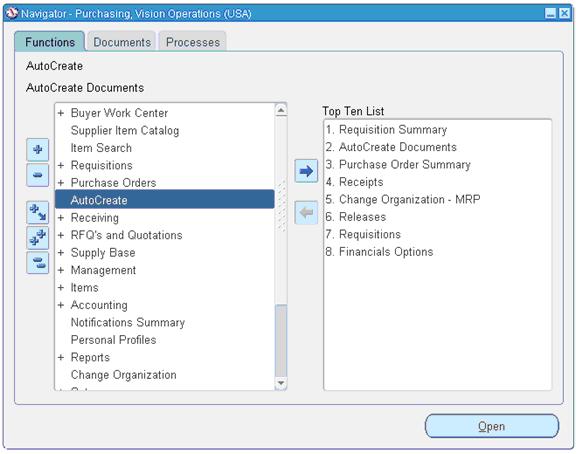
For creating a Purchase order, let us use the “Autocreate Documents” Form. Follow the below Navigation

 Query for the Requisition
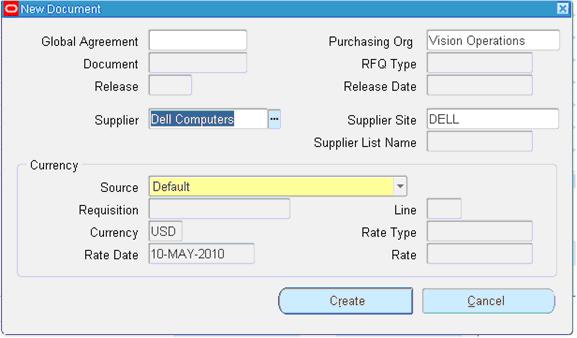
 Click on Automatic as shown in the above figure to create a Purchase Order
  
Click on “Create” button to create a Purchase order
  
 View the shipment screen to change the “Match Approval Level” to “2-Way”.

Click the “Receiving Controls” to make sure that the “Routing” is made as “Direct Routing”

 Click Save and submit for Approval.
                                     
 Note down the PO Number.
  
Stage 5: Creation of Receipts


Query with the Purchase order created in the above stage.

 Check the check box near to the lines that are received and click save.
  
Click the “Header Button” to view the Receipt Number.
Stage 6: Checking the On Hand

 Go to any Inventory Responsibility and follow the below Navigation

 Query for our Receipt and make sure the Organization is the same as we received.

 Below screen will show that our inventory has been increased by 5 quantities.
Stage 7: Check the Material Transactions
Follow the below Navigation to reach “Material Transactions” Form
 Query for the item and date as below
 Below screen shows the source and transaction Type
 Below screen shows you the Serial Numbers of the items received.

  
Stage 8: Creation of Invoice
Navigate to any Purchasing Responsibility and view Ã  Requests 
Submit the below requests by providing the Receipt number as Parameter to create an invoice.


 Check the status of the program.

Stage 9: Checking the Invoice
Change to any Payables Responsibility and open the invoices Form.
Query for the Purchase order as below,
                                   
 Click “Actions” Button then tick the “Validate Check Box” and press “Ok” to validate the invoice
  
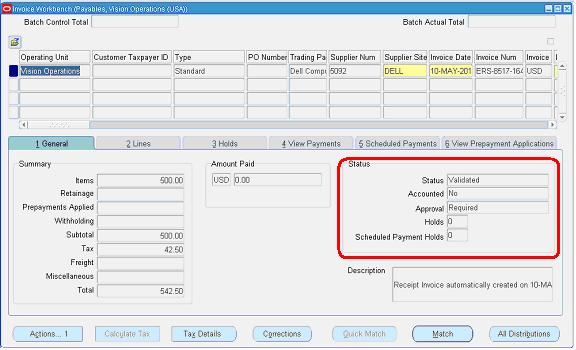
Below screenshot will give you the status of the invoice
  
Stage 10: Creation of Accounting and Payment
Once invoice got approved, we can “Create Accounting” and “Create Payments” via “Action” Button in the “Invoice Form” as we validated the invoice.

Thus the brief description of P2P cycle came to end. 

Oracle Fusion - Cost Lines and Expenditure Item link in Projects

SELECT   ccd.transaction_id,ex.expenditure_item_id,cacat.serial_number FROM fusion.CST_INV_TRANSACTIONS cit,   fusion.cst_cost_distribution_...