Showing posts with label PO. Show all posts

Wednesday, March 8, 2017

Purchase Order Setup (PO)


1-      Create Location of Organization
Purchasing Super User Responsibility or from HRMS also possible.
Purchasing > Setup > Organizations > Locations


2-      Create Operating Unit
Purchasing > Setup > Organizations > Organizations


Click on others and re click on the mandatory field of ‘Operating Unit Information’  as above.
3-      Create Inventory Organization
Purchasing > Setup > Organizations > Organizations


Click on others and enter accounting information as shown above and also inventory information and receiving also as below:

Inventory Information can also be entered from inventory module and its screen shots are as below:


** Take care in selecting Item Master Organization. It should by your master Inventory Org not your current inv. Org.


Receiving Options in the inventory org:

4-      Enter the Financial Options of the Operating Unit.
Setup > Organizations > Financial Options.


Use Approval Hierarchies is unchecked it means no positional hierarchies for approval purpose is being in operation.

5-      Enter Purchasing Options of Operating Unit.
Setup > Organizations > Purchasing Options


* If document numbeing is not enabled then run concurrent request 'Replicate Seed Data' for that new Operating Unit.

6-      Run concurrent program ‘Replicate Seed Data’ from system administrator responsibility to populate new Operating Unit in EBS.

7-      Approval Groups:  Create Approval Group for the Operating Unit
Setup > Approvals > Approval Groups


8-      Assign Approval Group: Assign tasks to the Job in Operating Unit
Setup > Approvals > Approval Assignments

9-      Add Buyer
Setup > Persoonel > Buyer


10-   Assign inventory items from master items to current newly created inventory organization (From inventory responsibility)

Inventory > Items > Master Items.


11-A- Create Hierarchy for approving documents (Purchase Order, Purchase Requisitions)
Human Resources Responsibility > Work Structures > Position > Hierarchy


11-B-   Run the Concurrent request ‘Fill Employee Hierarchy’ from purchasing responsibility. For the populating newly created Hierarchy.

12-   Hierarchy must also be associated on Document Types page
Setup > Purchasing > Document Types  After that first choose the organization and then click on Purchase order Standard.


For Purchase Requisitions:
Setup > Purchasing > Document Types  After that first choose the organization and then click on Requisition Purchase.


* Now enter the Purchase requisitions & Purchase orders and do receivings in PO or Inventory Module.

13- Go to Inventory Module and then assign item to your newly created Inventory Organization.

14- Assign Supplier to your Operating Unit in Payables Module.
      Go to supplier entry, Update option, then Address Book, then Manage Site

Monday, January 23, 2017

Purchase Order


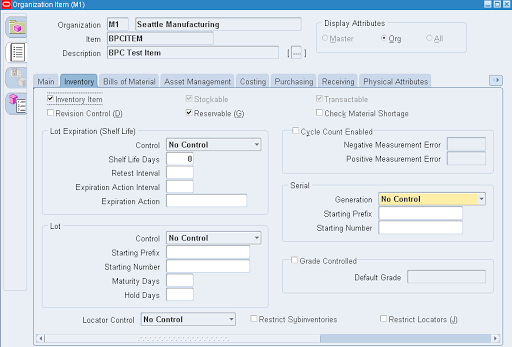
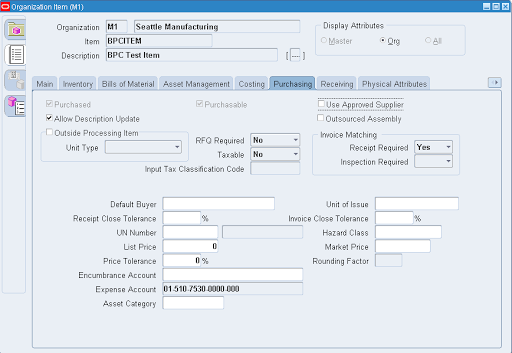
Creation Of Item

Create an Item and assign that to both the source and destination organization
Attributes
  • Purchased
  • Purchasable
  • Internal Order Enabled
  • Shippable
  • OE transactable

Creation of Internal Requisition

Now go ahead and create and Internal Requisition
Go to Purchasing Responsibility
Requisitions -> Requisitions

Note: You should have been defined as an employee/ buyer to create a requisition

  1. Type should be Internal Requisition
  2. Enter the item in Lines Tab
  3. Enter Quantity
  4. Enter Need By Date
  5. Select the Destination Organization
  6. Destination Location
  7. Select Source Organization

Click on Save, It will generate the Requisition Number. Note down the requisition number
Now need to Approve the Requisition
If you want to approve this requisition, then you should have required approval authority.
Lets do the required setup
Go to Human Resources (if Installed) responsibility
People -> Enter and Maintain
else in purchasing
Go to Setup -> Personnel -> Employees
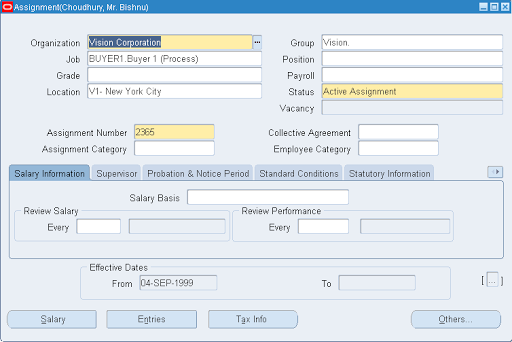
Find the employee (if not created already, select new and create one)
Select Assignment
Here assign a Job
Now lets go and check whether this Job has Requisition Approval authority or not
For this, navigate to Purchasing responsibility
Setup -> Approvals ->Approval Assignments


In this form, select the Job which you have assigned to the employee

Now you can see which all document types are authorized to approve
Make sure Approve Internal Requisitions is entered here
If you can’t see this, then add the value
Make sure the Approval Group which you are assigning here that has the approval limit authorization with in which your IR amount comes
As in this case
Here the limit is max $50,000 and our IR amount is only $100
Now Go back to the requisition and approve the same
Query the requisition and click on the approve button
Make sure Submit for Approval selected (it should be by default) then click on OK
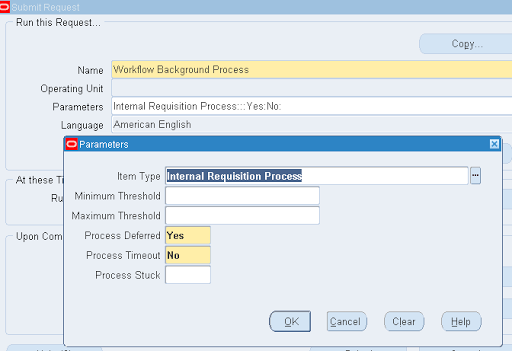
Wait for few min as the background process will check and clear the Approval workflow
And re-query the IR again
If Workflow Background Process not scheduled, you can go ahead and manually submit

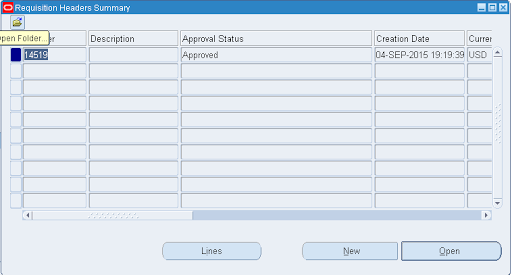
Now again requery the IR from requisition summary form

You will see the IR is approved

Creation of Internal Order

Next step is to Run the Create Internal Order concurrent program which will interface the data to Order management for creating internal order
Go to View -> Requests -> Submit a new request -> Single Request
Select Create Internal Orders and submit

Once the program is completed, check the log file,

It means the data transferred to Order Entry
Now lets go to Order Management and import the data to create the Internal Order
Navigate to Order Management responsibility
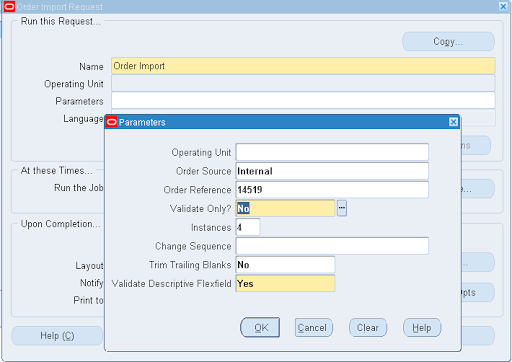
Go to Orders, Returns -> Import Orders -> Order Import Requests

Now enter the below parameters
  1. Source as Internal
  2. Select your IR number in Order Reference field
Then Click Ok and Submit.
This will spawn another child order import program

Now go ahead and query your Internal order which is just created by importing the data in order organizer form
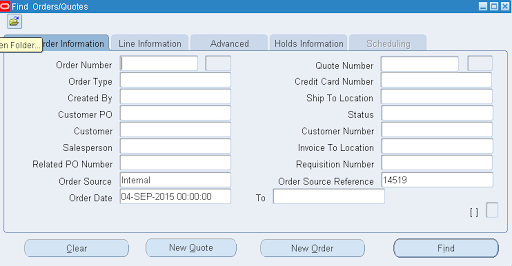
Orders, Returns -> Order Organizer
Give today’s date to refine
Select the source as Internal and give the IR number in the Order Source Reference


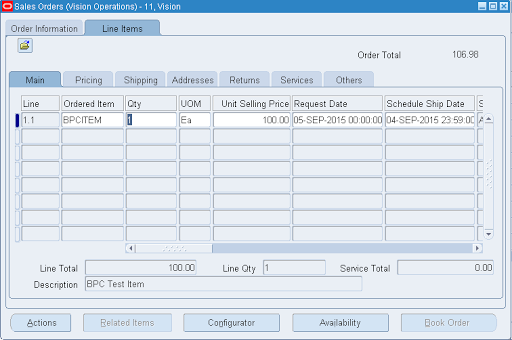
Now Click on Open.
Your internal order is ready

Oracle Fusion - Cost Lines and Expenditure Item link in Projects

SELECT   ccd.transaction_id,ex.expenditure_item_id,cacat.serial_number FROM fusion.CST_INV_TRANSACTIONS cit,   fusion.cst_cost_distribution_...